Manual: commands, details, problems
How Strom Research is installed and started, how edits from the app reach it, what helps when something doesn’t work, and how it is removed again. The guide adapts to the chosen system.
Step-by-step start is in the guide. To the guide →
Windows 10 or 11, 64-bit (x64 or ARM64) macOS on Apple Silicon or Intel Linux x64 or arm64
Installing from the Strom app
The shortest way. The app gives one line. The setup in the terminal offers research with an agent when there is one on the computer, otherwise it sets up a free Strom archive. Then the research opens the app by itself and offers to take over the family tree.
-
1
In the app: ⋯ → Ancestor research
The Strom Research dialog shows both options: research with an agent (recommended, with one’s own AI subscription) and a free Strom archive. The choice itself is made later, in the setup. Next comes Install on this computer.
-
2
The line: copied, pasted, Enter
Windows The line goes into the Win + R window (Ctrl V) and Enter confirms it.
macOS The line goes into Terminal (⌘ + Space, “Terminal”) with ⌘ V, and Enter confirms it.
Linux The line goes into a terminal (often Ctrl + Alt + T) with Ctrl + Shift + V, and Enter confirms it.
The line from the app carries the family tree’s mark, so this page doesn’t show it. It is valid for 24 hours.
-
3
The setup, then the family tree is handed over
Enter accepts each suggested answer. With an agent on the computer, the setup offers research with the agent and the Strom archive as the second choice; without one, it sets up the Strom archive straight away. At the end the research opens the app in the browser and offers to take over the family tree, together with the choice of how edits are sent (edits from the app).
When it doesn’t work
The app keeps waiting for the research
The installation is still running. On macOS, downloading Apple’s tools (Command Line Tools) can take up to 20 minutes. If the terminal ended with an error, copying the line in the app again and pasting it once more is enough. The waiting window can be closed; it doesn’t block anything.
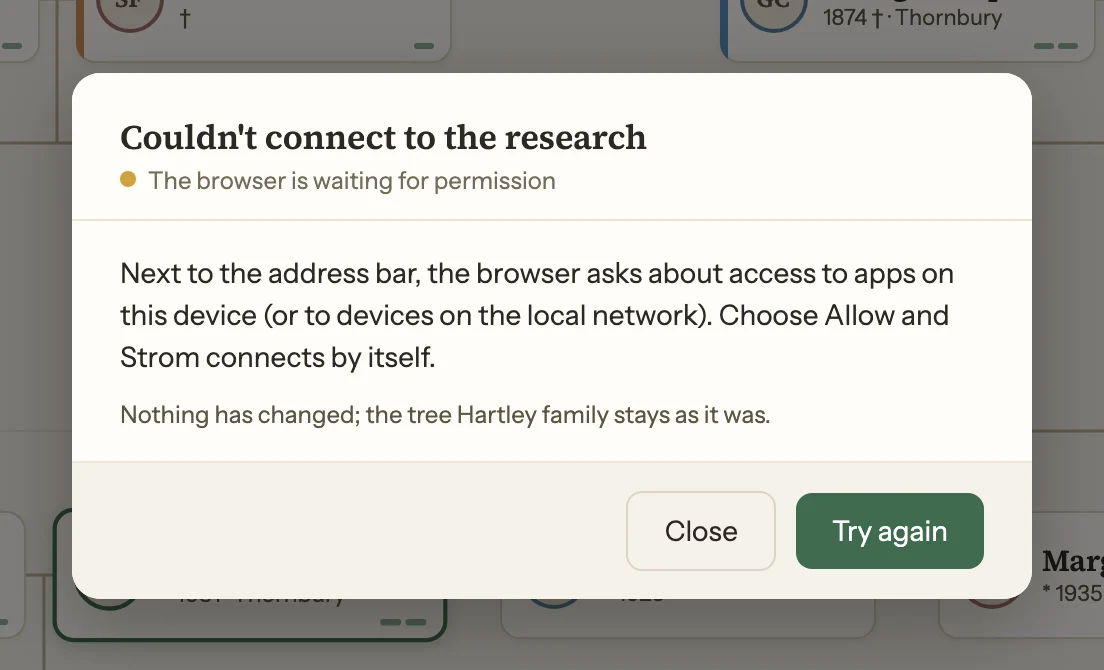
Chrome asks for access
Chrome may ask: “Access other apps and services on this device · Block / Allow”. With Allow, Strom connects to the research by itself; without it, Strom can’t reach it. Edge and Firefox didn’t ask in the test. The research runs on the same computer; nothing goes out.
The access is blocked
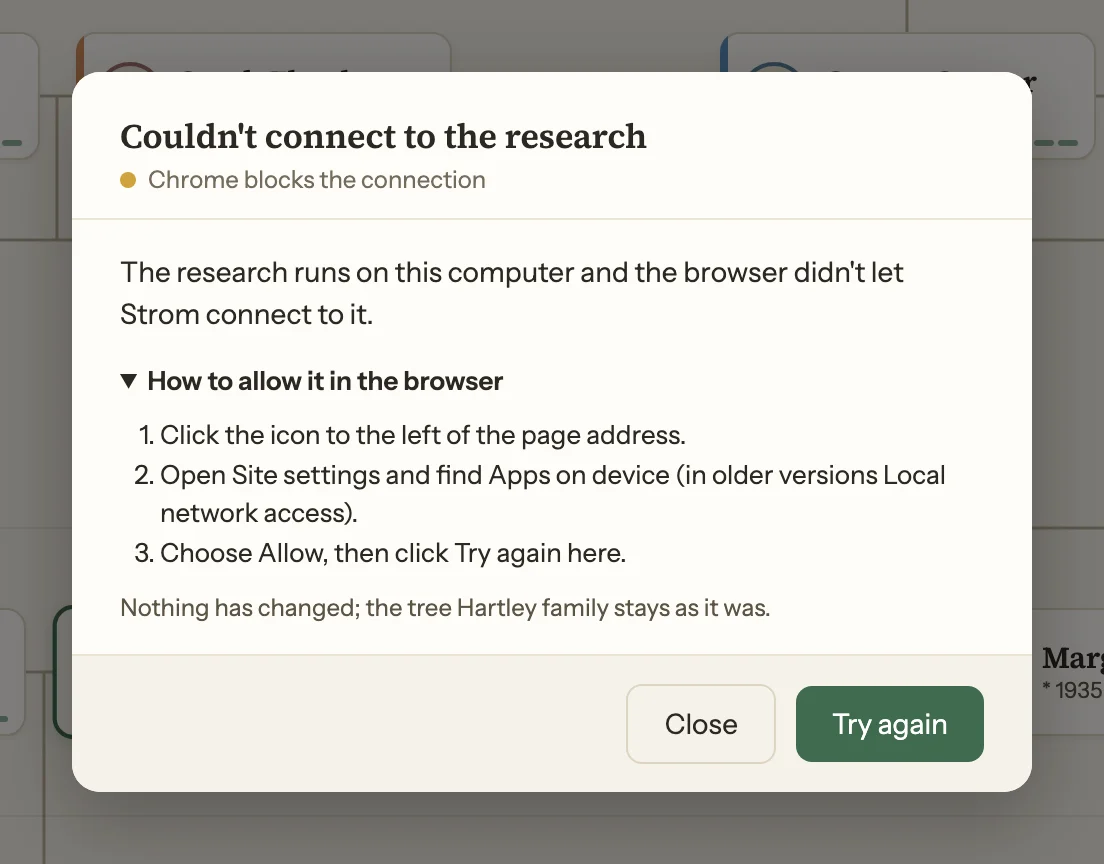
When Block was chosen at the question, the browser keeps Strom away from the research. It can be allowed afterwards:
- The icon to the left of the page address.
- Site settings → Apps on device (in older versions Local network access); in Brave, Localhost access.
- Allow, then Try again in the app.
Safari
Safari doesn’t let a web page talk to a program on the same computer, so it can’t reach the research. Installed from the Strom app in Safari, the research takes the family tree over by a file and, once ready, opens it in Chrome, Edge or Firefox; from then on the family tree is worked on there. The second way is GEDCOM export (Safari and a file).
The line has expired
The line from the app is valid for 24 hours. If the installation finished in the meantime, starting the research (strom) is enough. Otherwise New command in the app gives a fresh line; an earlier installation stays as it is, nothing is deleted.
In the terminal
One line installs Strom Research. Its setup asks a few things. With an agent it then opens the agent itself; without one, it sets up a Strom archive.
strom help --human
An overview of the commands for people, in the language of the research. Help for one command: strom help <command> --human. Plain strom help is the English catalogue for agents.
| Command | What it does |
|---|---|
strom | The guided menu: everything a person does with the research, by number. |
strom status | The family tree at a glance: data, check, what waits, what changed lately, disk. |
strom mode research|archive | Research with an agent, or only a Strom archive of the data from the Strom app: shows which, or switches (the two modes). |
strom chat --where | A conversation with the agent about the research; --where app|terminal picks the place just this once. |
strom setup --where | The setup again; --where app|terminal sets for good where the conversation with the agent happens. |
strom live start|stop | The Strom app follows the research live / the live view stops. start also starts the research’s connection to the app (bridge), which takes the edits from the app. |
strom sync undo | Takes back what a send from the app brought into the research. |
strom sync discard | Throws away a send from the Strom app that waits. |
strom update | Installs a newer Strom Research, after a question (updates). |
strom tidy | Frees the disk of what Strom Research keeps beside the research (shown first, then asked). |
strom history | What changed, one line per change. |
strom pack|unpack | Packs the research into one ZIP file for someone to go on with it / unpacks a family tree from someone else. |
strom link on|off | Lets the Strom app open the research with a click / no more opening it with a click. |
strom doctor | Checks everything Strom Research needs on this computer; --fix puts right what it can, each asked first. |
Installation step by step
-
0
Only for research with an agent: an AI agent
Research with an agent needs an AI agent with its own subscription, for example the Claude app from claude.com/download (paid Pro or Max). Other agents: the agents. With no agent on the computer, the setup in a terminal (installed without the app) offers to install Claude Code: the official installation of the terminal version, not the Claude app; it needs a Claude subscription, and the first start opens a browser window for signing in. Without an agent, the setup sets up a free Strom archive and this step is not needed.
For an agent with both an app and a terminal, the setup asks where to talk with it.
strom setup --wherechanges it later,strom chat --wherejust for one conversation.
-
1
Win + RTerminalA terminal
Windows The Win + R keys open the Run window.
macOS ⌘ + Space → “Terminal” → Enter.
Linux Ctrl + Alt + T, or the Terminal app. Pasting there: Ctrl + Shift + V.
-
2
The line, then Enter
Windows
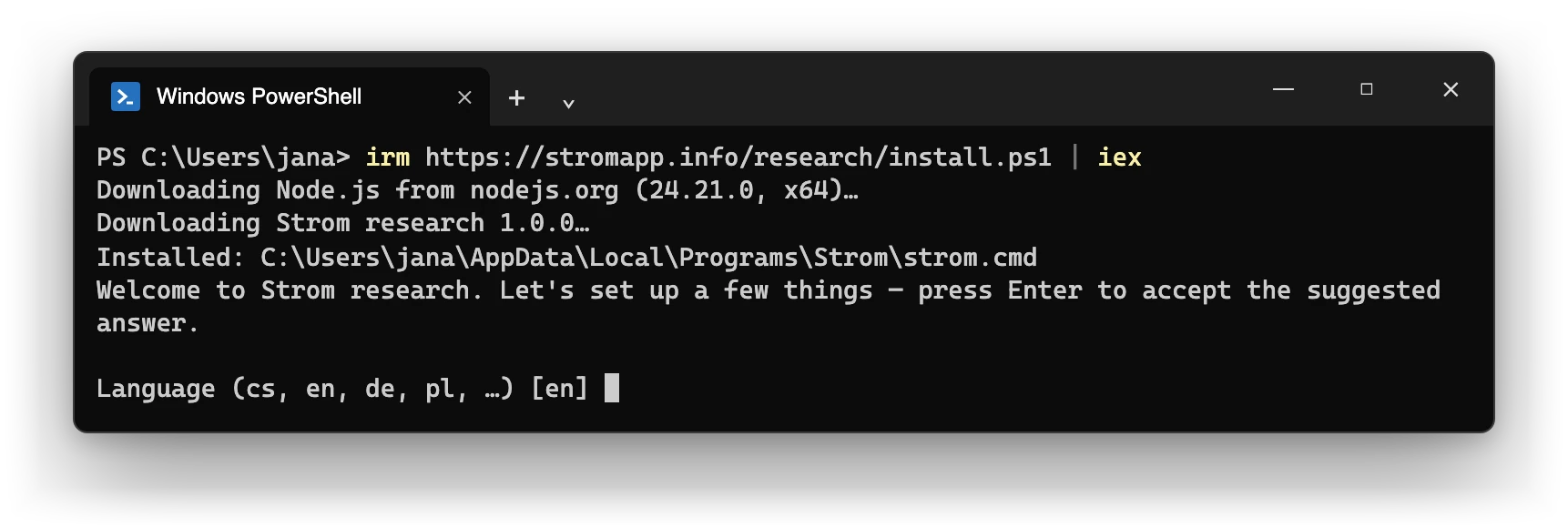
powershell -ExecutionPolicy Bypass -c "irm https://stromapp.info/research/install.ps1 | iex"macOS
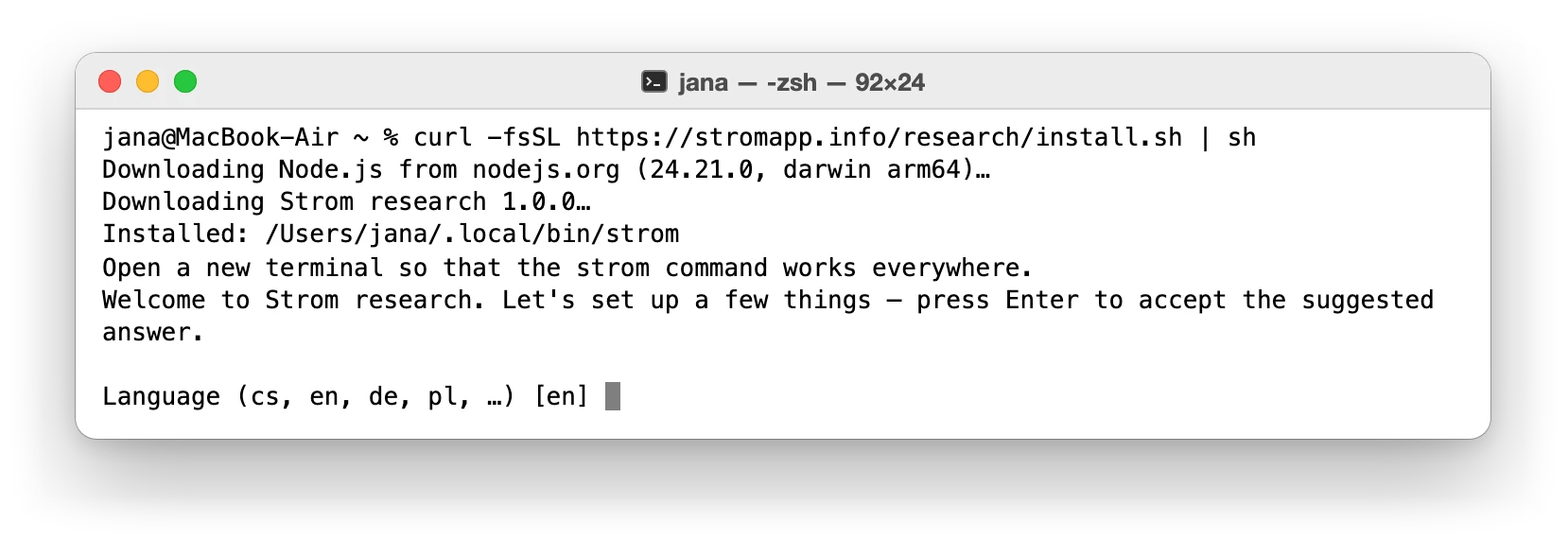
curl -fsSL https://stromapp.info/research/install.sh | shLinux
curl -fsSL https://stromapp.info/research/install.sh | shNo curl? Then with wget:
wget -qO- https://stromapp.info/research/install.sh | shIt downloads the official tools and Strom Research, checks both and needs no administrator rights. What exactly it does →What exactly it does →
-
3
A few questions, then the agent or the Strom archive
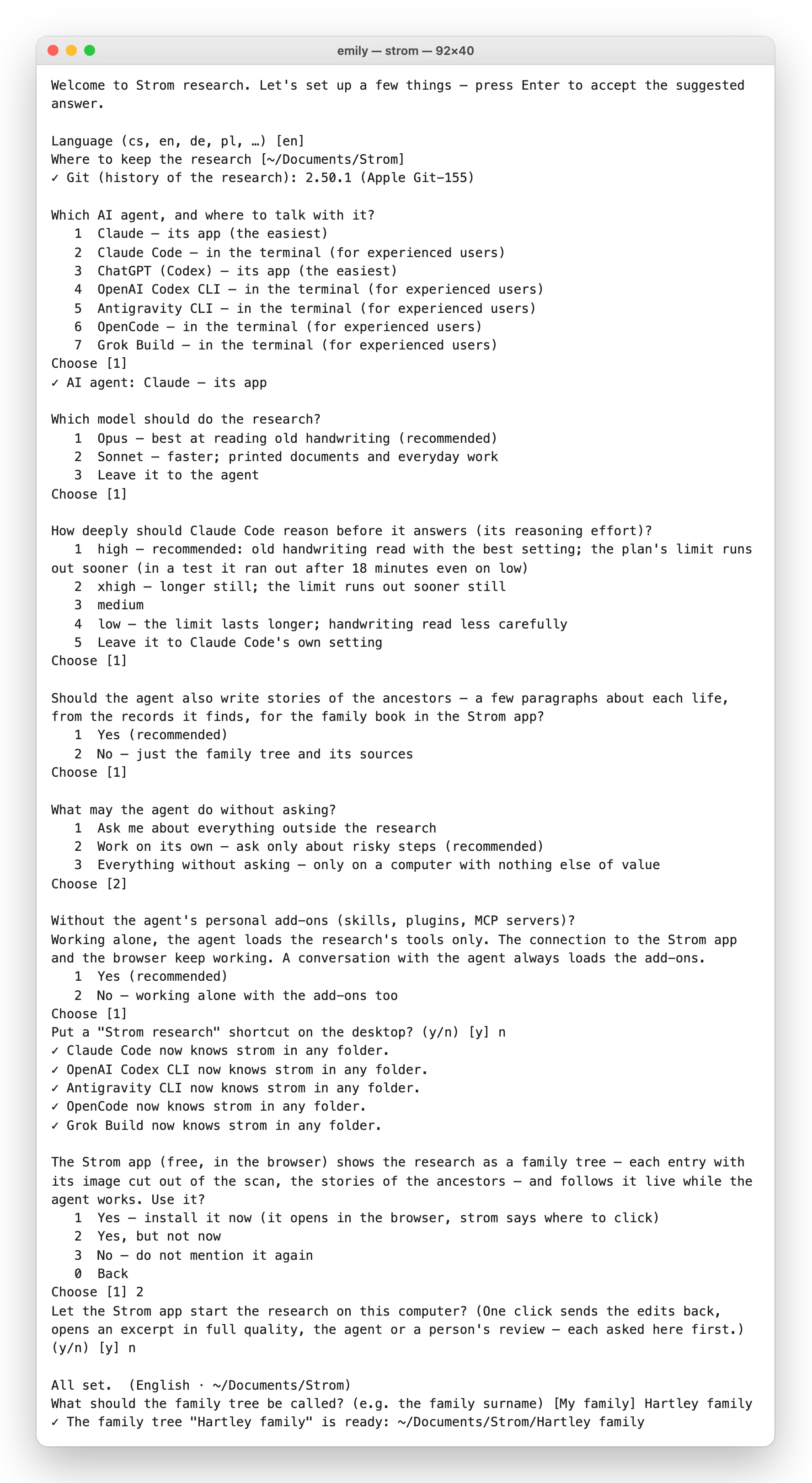
The setup asks one thing at a time; Enter accepts the suggested answer. With an agent on the computer it asks about:
- Language
- Where to keep the research
- Git (it gets it if missing)
- Agent, or Strom archive
- Where to talk: app or terminal
- Model
- Stories
- What the agent may do alone
- Desktop shortcut
- Name of the family tree
With an agent, the agent then opens by itself with the first message ready; in the agent’s app, the folder is confirmed and the message sent. Without an agent, the setup sets up a free Strom archive.
-
Next time
A double click on the “Strom research” shortcut on the desktop, or
stromin a new PowerShell window.A double click on the “Strom research” shortcut on the desktop, or
stromin a new Terminal window.A double click on the “Strom research” shortcut on the desktop, or
stromin a new terminal.
Details
| Windows | macOS | Linux | |
|---|---|---|---|
| Where it installs | %LOCALAPPDATA%\Programs\Strom — Node and the code of Strom Research; the folder is added to the user’s PATH. |
Program in ~/.local/share/strom, the command in ~/.local/bin/strom; PATH in .zshrc (bash and fish too). |
Program in ~/.local/share/strom, the command in ~/.local/bin/strom; PATH in .bashrc / .profile (fish too). |
| Git (the research’s history) | Strom Research downloads its own git (MinGit, the official portable Git for Windows) just for itself — no administrator rights. | Strom Research opens Apple’s window for the command line tools (xcode-select --install) and waits for Enter. Usually a few minutes, on a slow connection up to 20 minutes. |
Strom Research names the command for the package manager, e.g. sudo apt install git. |
| Consent window | A Windows window. | A macOS window. | A desktop window (zenity or kdialog), only with a graphical desktop; otherwise Strom Research names a command to run in the terminal. Not tried on every desktop. |
| Start next time | The “Strom research” shortcut, or strom in a new PowerShell. |
The “Strom research” shortcut, or strom in a new Terminal. |
The “Strom research” shortcut, or strom in a terminal. |
The consent window doesn’t come during the installation, only later, when the agent asks for something that needs consent: an update, uninstalling, settings, connectors, tidying up. It waits 5 minutes; no answer counts as “no”.
Strom archive and research with an agent
A research runs either with an agent or as a Strom archive without AI. Switching works any time, both ways; nothing is deleted.
| With an agent | The agent searches registers and archives online, writes down what is proven and asks about what is unclear. The AI subscription is one’s own; Strom Research charges nothing. |
|---|---|
| Strom archive | No AI, free, nothing leaves the computer. The data is entered in the Strom app; the research holds it with sources and the history of every change, backups and originals in full quality. |
Switching
| Strom archive → with an agent | In the research menu, Switch research on, or strom mode research. |
|---|---|
| With an agent → Strom archive | strom mode archive |
| Which one now | strom mode |
Settings and data stay when switching. In a Strom archive, the agent’s open tasks are set aside; back with an agent, they return to the queue. Only the person switches; when an agent asks for it, Strom Research asks in a window of the system.
Edits from the app to the research
A family tree linked to the research sends edits as chosen, only from Chrome, Edge or Firefox on the same computer; from Safari and from a phone only by a file. The bar next to the family tree’s name shows the status.
Three ways of sending
| Manually Recommended | Only when Send is clicked. What will go is shown first. |
|---|---|
| Automatically | After every change, by themselves after a short pause. |
| Only load from the research (send nothing) | Nothing goes to the research. Its version loads only on request. |
Chosen when the family tree is handed over; a family tree linked earlier without the choice asks once. It can be changed any time in the Research for this tree dialog.
Manually, step by step
-
1
Send
In the app, Research in the bar → Send changes, or Send in the bar.
-
2
Preview
Every change is shown before it goes.
-
3
The research writes
With an agent, it writes what doesn’t go against proven facts; changing a fact proven by a record creates a conflict. What the research doesn’t write is always shown.
The research’s results in the app
The Strom app item of the research menu (e.g. Open the research in the Strom app, strom app) opens the research in the app: the first time as a new family tree, after that as the same family tree, updated. Without it, the file output/tree-strom.ged from the research folder can be dragged into the app’s window, or opened with the installed app (Chrome, Edge on a computer); that, too, updates the same family tree. Import GEDCOM in the app’s menu creates a new family tree every time. The family tree stays in the app: next time, the same app in the same browser has it.
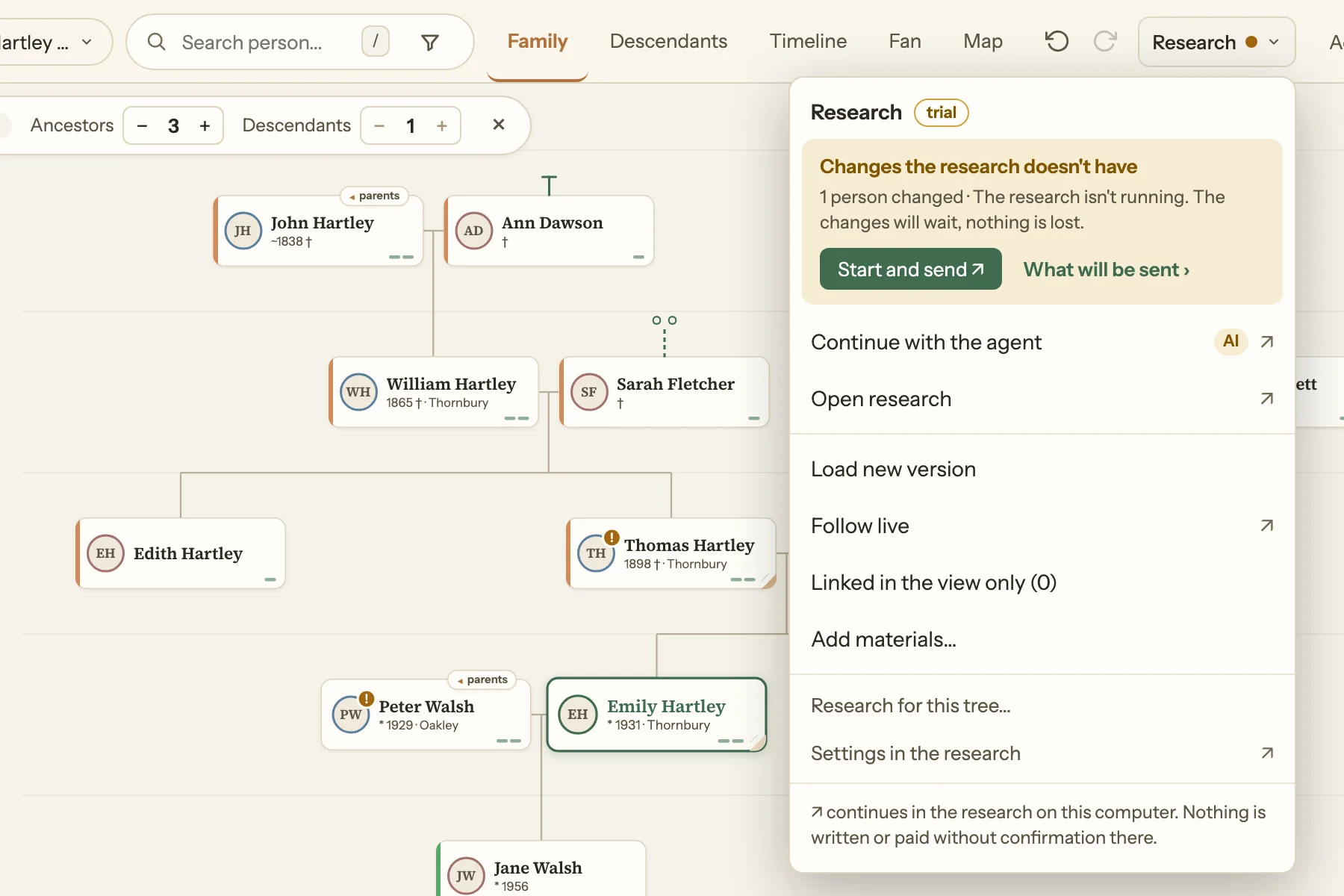
While the agent works and the app follows the research live, the results come into the family tree by themselves. Otherwise a newer version is loaded with Load in the app’s Research menu; a backup is saved first. The Research menu shows its items only when the research has links switched on (strom link on).
Loading the research’s version
The research’s version is loaded into the app only on request, in every mode: Load the research’s version. The dialog lists the changes person by person, and a backup is saved before every load. The family tree in the app is the main one; the research keeps its own copy.
Taking a send back
A send can be taken back in the app (Undo last send) or in the research with strom sync undo. The edits stay in the app. After that nothing more goes until a choice is made: Send again, or load the research’s version, which keeps the undo. The other way: new edits go on and the send taken back waits until it is sent again.
Throwing away a waiting send
A send from the app that waits in the research is thrown away with strom sync discard. The edits stay in the app.
Conflicts
With an agent, a proven fact is not overwritten: the change creates a conflict. It is shown right at the person, both versions side by side. It is decided in the app on the same computer (Keep the value from the app ↗ / Take the research's value ↗), which opens the research for a confirmation, or in the research: strom conflict resolve <conflict> --take user|research (user = the value from the app, research = the research’s value). On a phone, both sides are shown and the decision waits for the computer.
The connection to the app (bridge): when the research takes edits
Edits from the app are written only while the research’s connection to the app is running. A person starts it: the Strom app item of the research menu, the link in the app, strom live start, or setting up a research from a family tree in the app. It doesn’t start by itself at login or after a restart, and it stops after 2 hours of inactivity (an open live view keeps it going). A connection that crashed comes back the next time the menu opens. While the connection isn’t running, the app holds the edits and shows Start and send ↗; once it runs, the app sends them by itself.
The connection listens only on 127.0.0.1: edits are sent only from the app on the same computer, not from a phone or tablet.
Safari and a file
Safari doesn’t let the page reach a program on the computer, so sending doesn’t work there. The main way is moving the family tree to Chrome, Edge or Firefox: the research installed from the app in Safari takes the family tree over by a file and opens it in that browser. The second way is Export GEDCOM in the app and loading the file in the research: the Add to the research menu, or strom sync <file> (shown first, written with --apply). A family tree from another program (MyHeritage, Ancestry…) comes in the same way.
Updating the research
Strom Research looks for a new version at most once a day and says so: in the menu, when it starts and in strom doctor.
strom update
Installs the newest Strom Research, after a question. Only checking whether there is one: strom update --check.
Installed with npm: npm install -g strom-research@latest.
When that doesn’t work, pasting the installation line again helps (from the app or in the terminal); the research and the settings stay.
The connection to the app comes back by itself after an update.
Going back to an older version loses nothing: all research folders and settings are backed up first. A research written by a newer version is not opened by an older one.
The app says the research has an older version
The Update the research dialog in the app shows what to run: strom update, with npm npm install -g strom-research@latest. Then Check again. If the app still reports the older version, starting the research again helps, or pasting the installation line once more.
Problems
strom doctor
It checks everything Strom Research needs — git, the AI agent, the Strom app, the shortcut. With --fix it puts right what it can, each fix asked first.
strom doctor
strom is not recognised / command not found
A new terminal window helps — the old one doesn’t know the new PATH yet. Or strom starts with the full path the installer printed at the end.
The download failed
Usually the internet connection; the same line can simply run again. At work, a company proxy or firewall may block GitHub or nodejs.org — another network helps.
“The download is damaged (checksum mismatch)”
Something went wrong on the way. Running the same line again is enough; the installer downloads and checks everything once more.
Windows: “running scripts is disabled on this system”
The line from step 2 in the Win + R window allows the installer just for this one run and changes no setting of the computer. If the message comes in PowerShell, the same line in the Win + R window helps.
Windows: an antivirus or company rules stop it
Nothing downloaded is a program of ours: only the official, signed Node.js and the code of Strom Research as readable JavaScript. The computer’s administrator can help.
Windows: “The installation did not finish. Enter closes the window.”
The installation stopped with an error, and the window stays open so its last messages can be read. Enter closes it; the same line can then run again.
macOS blocks the program
Not expected when installed with the line. Should macOS block the program: System Settings → Privacy & Security → Open Anyway.
Windows: codex is not recognised after its installation
Codex installs itself into the user’s PATH; it then starts with codex in a new PowerShell window. The window started from Win + R closes right after the installation.
The agent says to run the installation without it
That’s fine: its own safety check doesn’t let it install programs from the internet. Step 2 is one line in Win + R (Windows) or in a terminal.
Nothing happened
strom in a new terminal shows it: if it starts, the installation is fine. If not, strom doctor says what is missing, or the line from step 2 can run again and its last messages say why.
Still stuck? More answers in the frequently asked questions; a problem can be reported on GitHub. Na otázky odpovídá i skupina uživatelů na Facebooku ↗.
Removing Strom Research again
The research stays in Documents/Strom — nothing of it is deleted.
In a terminal:
strom uninstall
Strom Research lists what it takes off the computer and asks first: the program, the desktop shortcut, the links from the app, its own git, the installer’s PATH entry and what the AI agents know of Strom Research. The research and the settings stay. While strom still runs in another window (menu, conversation, the agent’s work), uninstalling removes nothing and asks for it to be closed first.
Installed with npm: then also npm uninstall -g strom-research. The research folders in Documents/Strom are deleted by hand, once they are no longer needed.